Screen recording on iPhone is one of the most useful built-in features Apple offers. Whether you want to create a tutorial, record gameplay, save a video call, or capture an app issue to share with support, knowing how to screen record on iPhone can save time and effort.
The best part? You don’t need to download any third-party apps. Apple’s screen recording feature is already built into iOS and works smoothly across most iPhone models.
In this complete guide, you’ll learn how to screen record on iPhone step by step, how to add it to Control Center, how to record sound, tips for better recordings, common problems, and answers to frequently asked questions.
What Is Screen Recording on iPhone?
Screen recording allows you to capture everything happening on your iPhone screen in real time. This includes:
- App activity
- Gameplay
- Browsing steps
- Video playback
- Tutorials and demos
The recording is saved as a video file directly to your Photos app, where you can edit, trim, or share it easily.
Which iPhones Support Screen Recording?
Most modern iPhones support screen recording, including:
- iPhone 8 and later
- iPhone X, XR, XS series
- iPhone 11, 12, 13, 14, and 15 series
- iPhone SE (2nd generation and newer)
As long as your device is running iOS 11 or later, you can use screen recording.
How to Screen Record on iPhone (Step-by-Step)
Let’s walk through the simplest way to screen record on iPhone.
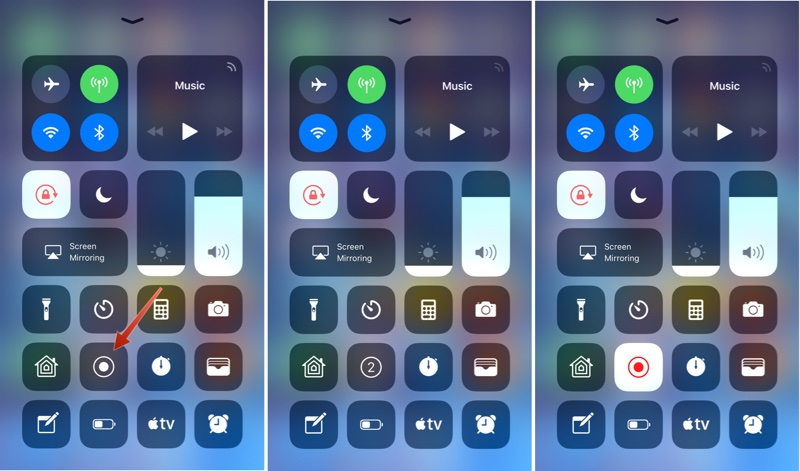
Step 1: Add Screen Recording to Control Center
Before recording, you need to make sure the screen recording button is available in Control Center.
- Open Settings
- Tap Control Center
- Scroll down to More Controls
- Find Screen Recording
- Tap the + (Add) button
Once added, it will appear in your Control Center for quick access.
Step 2: Open Control Center
The way you open Control Center depends on your iPhone model:
- iPhone X and newer: Swipe down from the top-right corner
- iPhone 8 and older: Swipe up from the bottom of the screen
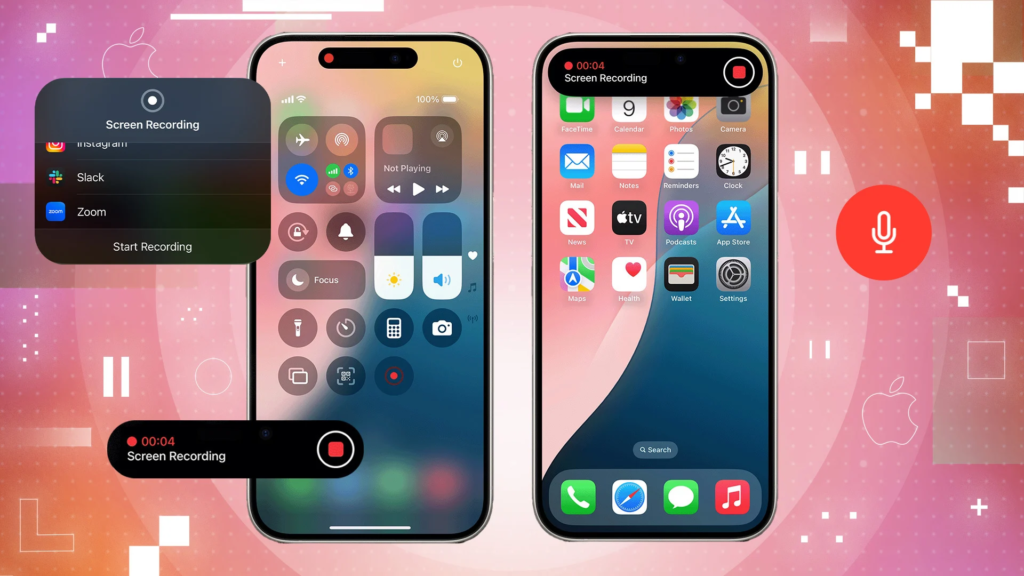
You’ll now see the Screen Recording icon (a circle inside another circle).
Step 3: Start Screen Recording
- Tap the Screen Recording icon
- A 3-second countdown will begin
- Your screen recording starts automatically
During recording, you’ll see a red bar or red clock at the top of your screen, indicating that recording is active.
Step 4: Stop Screen Recording
To stop recording:
- Tap the red bar or red clock, then tap Stop
OR - Open Control Center and tap the Screen Recording icon again
Your recording will automatically be saved to the Photos app.
How to Screen Record on iPhone With Sound
By default, iPhone screen recordings do not include microphone audio. If you want to record your voice or external sound, follow these steps.
Enable Microphone Audio
- Open Control Center
- Press and hold the Screen Recording icon
- Tap the Microphone icon to turn it ON
- Tap Start Recording
Now your screen recording will include your voice or background audio.
This is especially useful for:
- Voice tutorials
- App walkthroughs
- Gameplay commentary
- Online teaching or demos
Where Are Screen Recordings Saved?
All screen recordings are automatically saved to the Photos app.
To find them:
- Open Photos
- Go to Albums
- Tap Videos or Screen Recordings
From there, you can watch, edit, trim, or share your recording.
How to Edit a Screen Recording on iPhone
You don’t need any editing apps for basic edits.
Trim a Screen Recording
- Open the recording in Photos
- Tap Edit
- Drag the sliders at the beginning or end
- Tap Done
- Choose Save Video or Save as New Clip
This helps remove unnecessary parts like the countdown or stopping action.
How to Screen Record Specific Apps on iPhone
Screen recording works with most apps, including:
- Social media apps
- Games
- Browsers
- Messaging apps
However, some apps like banking apps or streaming platforms may block screen recording due to privacy or copyright restrictions.
If the screen turns black or recording fails, the app may not allow screen capture.
Tips for Better Screen Recordings on iPhone
Here are some practical tips to improve your screen recordings:
Turn On Do Not Disturb
Avoid interruptions from calls or notifications by enabling Focus Mode or Do Not Disturb.
Clean Up Notifications
Clear unnecessary notifications before recording for a clean screen.
Use Landscape Mode When Needed
Rotate your phone for better viewing, especially for tutorials or gaming.
Close Background Apps
This improves performance and reduces lag during recording.
Check Storage Space
Screen recordings can take up space quickly. Make sure you have enough storage.
Common Problems When Screen Recording on iPhone
Even though screen recording is simple, users sometimes face issues. Here’s how to fix them.
Screen Recording Button Missing
Go to Settings > Control Center and add Screen Recording.
No Sound in Recording
Make sure the microphone is turned ON before recording.
Recording Stops Automatically
This can happen due to:
- Low storage
- App restrictions
- System glitches
Restart your iPhone and try again.
Screen Turns Black
Some apps restrict recording for privacy or copyright reasons.
How to Share Screen Recordings From iPhone
Once recorded, you can easily share your video.
You can share via:
- YouTube
- AirDrop
Just open the video in Photos, tap Share, and choose your platform.
Is Screen Recording Safe on iPhone?
Yes, screen recording on iPhone is safe and secure. Apple does not record or store your screen activity. Everything is saved locally on your device unless you choose to share it.
However, always respect privacy and avoid recording sensitive information without permission.
How to Delete Screen Recordings
If you want to free up storage:
- Open Photos
- Go to Videos or Screen Recordings
- Select the recording
- Tap Delete
You can also delete multiple recordings at once.
Frequently Asked Questions (FAQ)
Can I screen record FaceTime calls on iPhone?
You can record the screen, but audio recording may be limited due to privacy restrictions.
Does screen recording notify others?
No, iPhone does not notify others when you screen record.
Can I screen record while using apps?
Yes, most apps allow screen recording, except restricted apps.
How long can I screen record on iPhone?
There’s no fixed limit. Recording length depends on available storage and battery life.
Can I screen record without Control Center?
No, Control Center is required to start screen recording.
READ ABOUT:
Do the Driving Modes in Cadillac Lyriq Offer Different Ranges or Battery Usages?
Final Thoughts on How to Screen Record on iPhone
Learning how to screen record on iPhone is a simple yet powerful skill. Whether you’re creating content, teaching, troubleshooting, or saving memories, Apple’s built-in screen recording tool makes the process fast and easy.
With just a few taps, you can record your screen, add sound, edit the video, and share it anywhere. No apps, no complicated setup, and no extra cost.
If you regularly create tutorials or content (especially for social media or clients), mastering this feature can seriously boost your productivity.
Frequently Asked Questions (FAQ)
How do I screen record on iPhone?
To screen record on iPhone, open Control Center, tap the Screen Recording icon, wait for the 3-second countdown, and your screen recording will start automatically. To stop, tap the red bar at the top and select Stop.
How do I add screen recording to Control Center on iPhone?
Go to Settings > Control Center, scroll down, find Screen Recording, and tap the + icon. The screen recording option will then appear in Control Center.
Can I screen record on iPhone with sound?
Yes, you can screen record with sound. Press and hold the Screen Recording icon in Control Center, turn on the Microphone, and then start recording. Your voice and external sounds will be recorded.
Where are screen recordings saved on iPhone?
All screen recordings are automatically saved in the Photos app. You can find them under Albums > Videos or Screen Recordings.
Why is there no sound in my iPhone screen recording?
If your screen recording has no sound, the microphone was likely turned off. Press and hold the screen recording button and make sure the Microphone is enabled before recording.
Can I screen record FaceTime or video calls on iPhone?
You can record the screen, but audio recording may be limited or blocked due to privacy restrictions. Some apps do not allow audio capture during screen recording.
Why does my iPhone screen recording stop automatically?
Screen recording may stop due to low storage, overheating, app restrictions, or system glitches. Restart your iPhone and ensure enough storage space is available.
Can I screen record apps like Netflix or banking apps?
Some apps restrict screen recording for privacy or copyright reasons. In such cases, the screen may appear black or the recording may not work.
How long can I screen record on iPhone?
There is no fixed time limit for screen recording. The length depends on your available storage space and battery level.