YouTube Shorts have become a major part of YouTube’s platform, designed to compete with TikTok by offering short, vertical videos under 60 seconds. While many users enjoy Shorts, some viewers find them distracting or irrelevant to their content preferences. If you’re looking for ways to block or minimize Shorts on YouTube, this guide will walk you through all the available methods, tips, and tricks.
What Are YouTube Shorts?
YouTube Shorts are quick, vertical videos that can be watched on both mobile and desktop. They are designed for quick consumption, with features like looping videos, trending audio, and rapid content discovery. Shorts appear prominently on the YouTube homepage, under the Shorts tab, and in suggested videos.
Although Shorts are engaging, they can sometimes clutter your feed and make it harder to focus on regular YouTube videos. This is why many users seek ways to block or hide them.
Why People Want to Block YouTube Shorts
There are several reasons why someone might want to block Shorts on YouTube:
- Distraction-Free Viewing – Shorts often autoplay and can distract from watching longer, meaningful videos.
- Content Preference – Some users prefer full-length videos for learning, tutorials, or entertainment.
- Time Management – Shorts are designed to be addictive, making it easy to spend hours watching short clips without realizing it.
- Minimal Data Usage – Watching Shorts frequently can consume a lot of mobile data.
Blocking Shorts can help improve your overall YouTube experience and make the platform more personalized to your needs.
How to Block YouTube Shorts on Desktop
Currently, YouTube does not offer a built-in feature to completely block Shorts, but there are workarounds you can use:
1. Using Browser Extensions
Several browser extensions can help you hide Shorts on YouTube:
- Video Blocker – Allows you to block videos containing specific keywords, such as “Shorts.”
- DF Tube (Distraction Free for YouTube) – Lets you hide Shorts, recommended videos, and the sidebar to create a distraction-free experience.
Steps to use DF Tube:
- Install DF Tube from the Chrome Web Store.
- Open YouTube and click the DF Tube icon in your browser.
- Enable the option to hide Shorts on the homepage and search results.
This method works well on desktop and ensures that Shorts do not appear in your feed.
2. Adjusting YouTube Settings
While YouTube does not allow a full Shorts block, you can minimize their appearance:
- Avoid clicking on Shorts, as YouTube’s algorithm pushes content based on your watch history.
- Clear your watch history for Shorts videos to prevent similar recommendations.
- Use the “Not Interested” option on Shorts that appear on your homepage.
How to mark Shorts as Not Interested:
- Hover over the Shorts video thumbnail.
- Click the three-dot menu.
- Select “Not Interested.”
This reduces the frequency of Shorts recommendations over time.
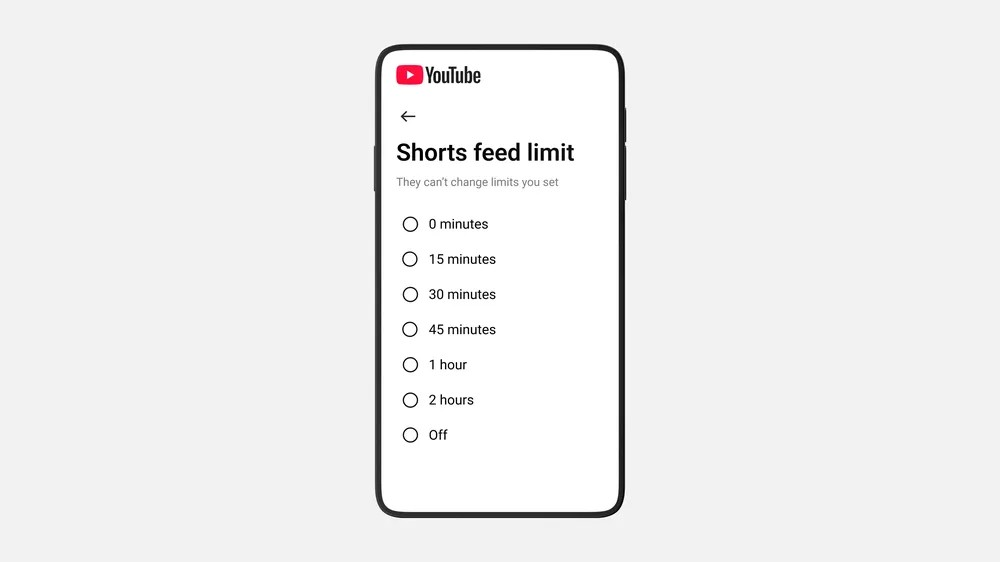
How to Block YouTube Shorts on Mobile
Blocking Shorts on mobile is trickier because the YouTube app heavily promotes Shorts. However, there are some effective strategies:
1. Use a Mobile Browser
Instead of the app, use YouTube on a mobile browser like Chrome or Firefox. Then, you can use extensions or ad blockers that hide Shorts.
2. Restrict Content Using YouTube Settings
You can limit Shorts exposure by customizing your YouTube app experience:
- Clear Watch History – Open the YouTube app > Profile > Settings > History & Privacy > Clear watch history.
- Use “Not Interested” – Tap the three dots next to a Shorts video and select “Not Interested.”
- Turn Off Notifications for Shorts – Go to Settings > Notifications > Shorts and toggle off notifications.
3. Use Third-Party Apps
Some third-party apps allow you to watch YouTube videos without seeing Shorts. These apps often focus on filtering content and offering a distraction-free interface.
Tips to Reduce Shorts on YouTube
Even without a complete block feature, you can reduce Shorts exposure using the following tips:
- Subscribe to Channels You Prefer – YouTube prioritizes content from your subscriptions over Shorts.
- Create Playlists – Watch videos through playlists instead of browsing the homepage.
- Use YouTube Premium – Premium users can download videos for offline viewing and sometimes avoid Shorts recommendations.
- Give Feedback – Report Shorts that are irrelevant by selecting “Not Interested” or “Don’t Recommend Channel.”
These steps, combined with extensions or third-party tools, help make YouTube a Shorts-free environment.
Common Questions About Blocking YouTube Shorts
Can You Permanently Block Shorts on YouTube?
No, YouTube does not provide an official way to completely block Shorts. The best solution is using browser extensions, third-party apps, or marking videos as “Not Interested.”
Do Extensions Work on Mobile?
Most browser extensions only work on desktop. For mobile devices, using a browser or third-party app is the most effective method.
Will Blocking Shorts Affect Other YouTube Features?
No, blocking or hiding Shorts will not affect your ability to watch regular videos or use subscriptions and playlists.
Is There a YouTube App Setting to Block Shorts?
Currently, the official app does not include a setting to block Shorts. Users must rely on workarounds and feedback tools.
READ ABOUT:
AI Chips News: Latest Trends, Companies, and What the Future Holds
Conclusion
While YouTube Shorts are a popular feature, they can be distracting for users who prefer longer content. Although there is no official feature to block Shorts entirely, several methods—including browser extensions, third-party apps, and YouTube settings—can help minimize or hide Shorts from your feed.
By following the steps outlined in this guide, you can create a more personalized, distraction-free YouTube experience, focusing only on the videos you want to watch.
FAQ: How to Block Shorts on YouTube
1. Can I permanently block YouTube Shorts?
Currently, YouTube does not offer an official way to permanently block Shorts. However, you can hide them using browser extensions, third-party apps, and by marking videos as “Not Interested.”
2. How do I hide Shorts on YouTube desktop?
You can hide Shorts on desktop by using extensions like DF Tube or Video Blocker, clearing your watch history, and marking Shorts as “Not Interested.”
3. How do I hide Shorts on mobile?
On mobile, you can use the YouTube app’s “Not Interested” option, clear watch history, turn off Shorts notifications, or use YouTube via a mobile browser with content filters.
4. Will hiding Shorts affect my regular YouTube videos?
No, hiding or blocking Shorts does not affect your subscriptions, playlists, or the ability to watch regular videos.
5. Are there apps that help block YouTube Shorts?
Yes, some third-party apps allow you to watch YouTube without seeing Shorts. These apps focus on filtering content for a distraction-free experience.
6. Why do I keep seeing Shorts even after marking them as “Not Interested”?
YouTube’s algorithm can still recommend Shorts based on trends and popular videos. Regularly marking Shorts as “Not Interested” and clearing your watch history will reduce their frequency over time.
7. Can I stop YouTube from recommending Shorts?
While you cannot completely stop recommendations, marking Shorts as “Not Interested,” unsubscribing from channels that post them frequently, and giving feedback to YouTube can help.